
System and Software Setup
Hardware Requirements
Recommended hardware specifications for the SMC AICA 2026 competition.
| Tier | CPU | RAM | GPU |
|---|---|---|---|
| Minimum Specifications | Intel Core Ultra 5 / Intel Core i5 / Ryzen 5 | 8GB | Intel Iris Xe or Intel Arc integrated GPU |
| Recommended Specifications | Intel Core Ultra 7 / Intel Core i7 / Ryzen 7 | 16GB | Intel Arc integrated GPU or discrete GPU (e.g., NVIDIA GeForce RTX 3050) |
| Recommended Research Specifications | Intel Core Ultra 7 / Intel Core i7 / Ryzen 7 | 32GB | Discrete GPU (e.g., NVIDIA GeForce RTX 3050) |
Software Setup & Installation
Required software installation and configuration before running the SMC AICA 2026 Competition Files Package.
Step 1 - Download
Download the SMC AICA 2026 Competition Files Package to the system. This can be done using Git or by downloading the files as a .zip archive. It is recommended to store the files in C:\Users\<YourUsername>\Documents\Quanser.
With Git
- Install Git.
- Open a windows terminal in
C:\Users\<YourUsername>\Documents. - Run the following command to create the Quanser directory and copy the contents of this repo in there.
git clone https://github.com/UTADNCLab/IEEE-SMC-AICA-Competition-2026.git Quanser
Without Git (ZIP)
- Create a folder named Quanser under Documents on the system. The directory should be
C:\Users\<Username>\Documents\Quanser. Then open the repository on GitHub: IEEE SMC AICA Competition 2026. - Click the green Code button at the top of the GitHub page, then select Download ZIP from the menu.
- Unzip the folder in the system.
- Open
IEEE-SMC-AICA-Competition-2026-main(containing folders0_libraries,1_setup,2_SMC_AICA_2026_Competition_Files). Copy all contents into the newly createdC:\Users\<Username>\Documents\Quanserfolder.
Expected Local Layout
C:\Users\<YourUsername>\Documents\Quanser\
    0_libraries\
    1_setup\
    2_SMC_AICA_2026_Competition_Files\
For additional information on Quanser Academic resources refer: Quanser_Academic_Resources
Step 2 - Install Required Software
Install Python
Download Python (Python 3.12 recommended): Python Official Downloads. On the first screen of the installer, make sure to check Add Python to PATH. If you download Python from the official Python website, do not use the Python Install Manager.
Install NumPy using the following command:
python -m pip install numpy
Install Quanser SDK
Download the Quanser SDK for Windows from the following GitHub repository: Quanser SDK
If using MATLAB/Simulink
Download MATLAB (2023a or later): MATLAB for Windows
In MATLAB, download Quanser Interactive Labs for MATLAB via Add-On Explorer.
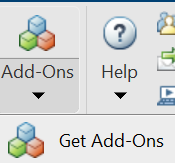
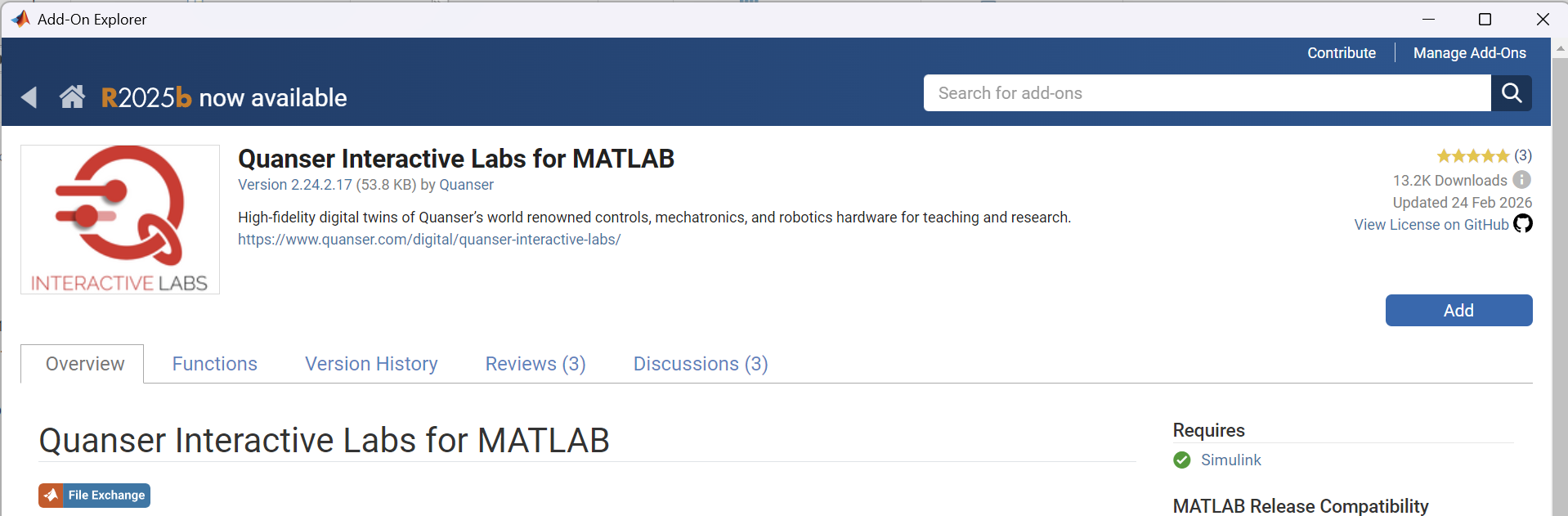
Follow the instructions in the Getting Started section of Quanser Interactive Labs for MATLAB to properly install Quanser Interactive Labs. Run QLabs.setup and complete the installation process before continuing with this guide.
Install Quanser Interactive Labs (QLabs)
If the QLabs has been properly installed in previous section, skip this step.
Download the QLabs: QLabs Get Started
Step 3 - Check System Requirements
Navigate to:
C:\Users\<YourUsername>\Documents\Quanser\1_setup\
Run step_1_check_requirements and make sure system diagnosis is successful before proceeding to Step 4.
Step 4 - Configure Environment
From C:\Users\<YourUsername>\Documents\Quanser\1_setup\:
- Run
configure_python.batfor Python workflow only - Run
configure_matlab.batfor MATLAB workflow only - Run both files if using Python and MATLAB
Restart your system after all configuration steps are complete.